

Appearance
Set a project's default time display and start frame
A project's Player settings decide how the web player first shows time for everyone in the project, as frames, timecode, or seconds, and which number the first frame of each item gets. Use them to match your studio's frame numbering, for example a first frame of 1001.
Before you start
- Who: anyone who can edit the project: Owners, Admins, Members, Project Admins, and Contributors.
- Where: the web app. The settings apply to the web player.
Change the defaults
- Open the project and select the gear next to its name at the top of the page (Project settings).
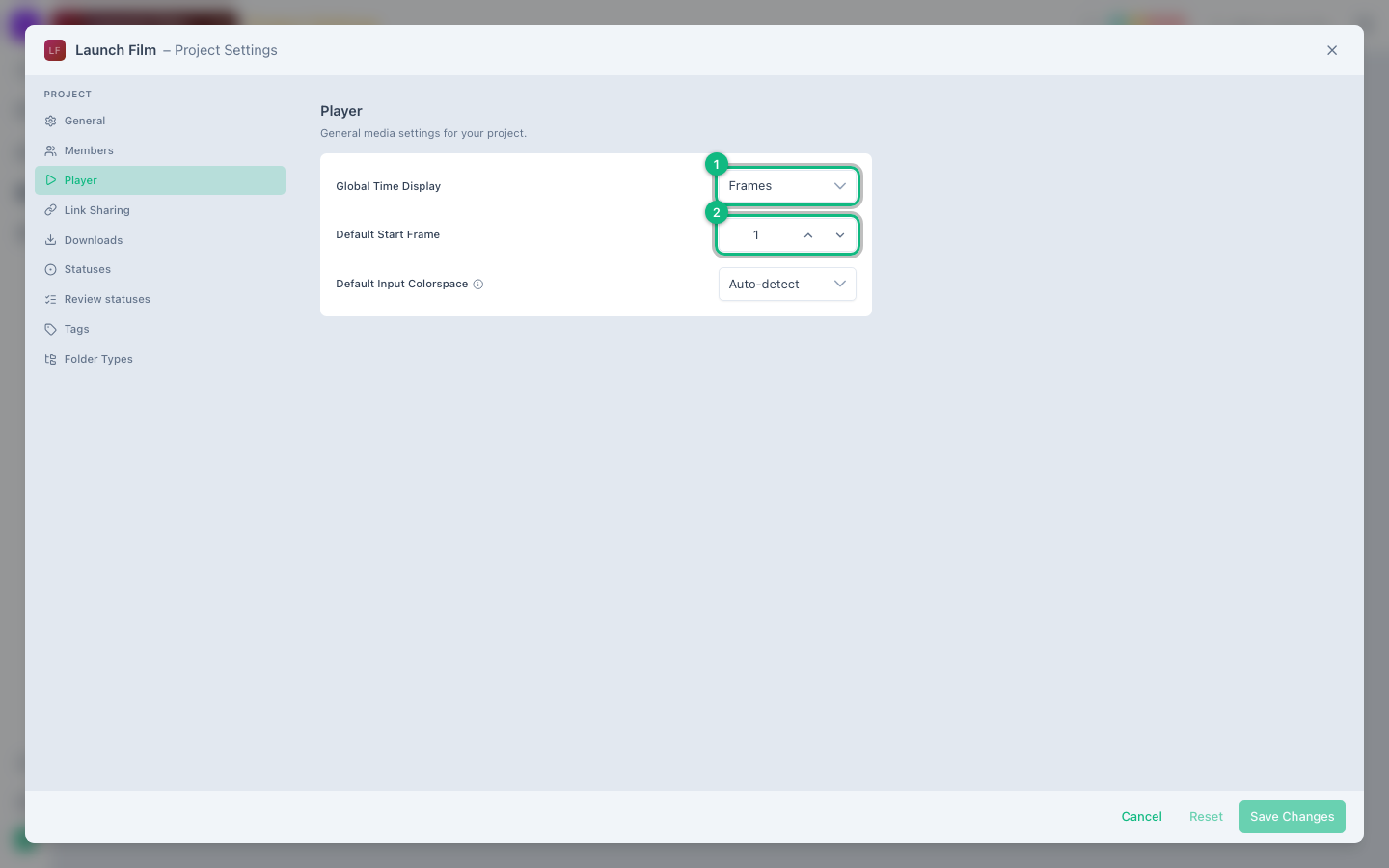
- Select Player.
- In Global Time Display, choose Frames, Timecode, or Seconds. The default is Frames.
- In Default Start Frame, enter the number of the first frame, 1 or higher. The default is 1.
- Select Save Changes.
How the player uses them
- Time display: the player starts in the project's mode when you open one of its reviews. Anyone can still switch modes in the player for themselves; that doesn't change the project's default.
- Start frame: in Frames, the first frame shows your start frame, and later frames count up from it. Timecode starts at your start frame minus one, so the default of 1 starts at
00:00:00:00. Seconds shows elapsed time and ignores the start frame. - PDFs: pages always start at 1, whatever the start frame.