

Appearance
Upload and organize files in folders
Files & Folders holds every file in a project. Upload single files or a whole folder from your computer, then sort them into folders that you can rename, move, and color.
Before you start
- Who: the organization's Owners, Admins, and Members, and the project's Project Admins and Contributors. Reviewers and Viewers can browse but not change anything; they still see the upload and folder entries, which fail for them.
- Where: the web app.
- You need: files in a supported format, up to 10 GB each.
Upload files or a folder
- Open the project and select Files & Folders in the left sidebar.
- Open the folder you want to upload into, or stay at the top of the project. Uploading isn't available in All Files.
- Select Upload files or Upload folder (the upload icons at the top of the page), then choose what to upload.
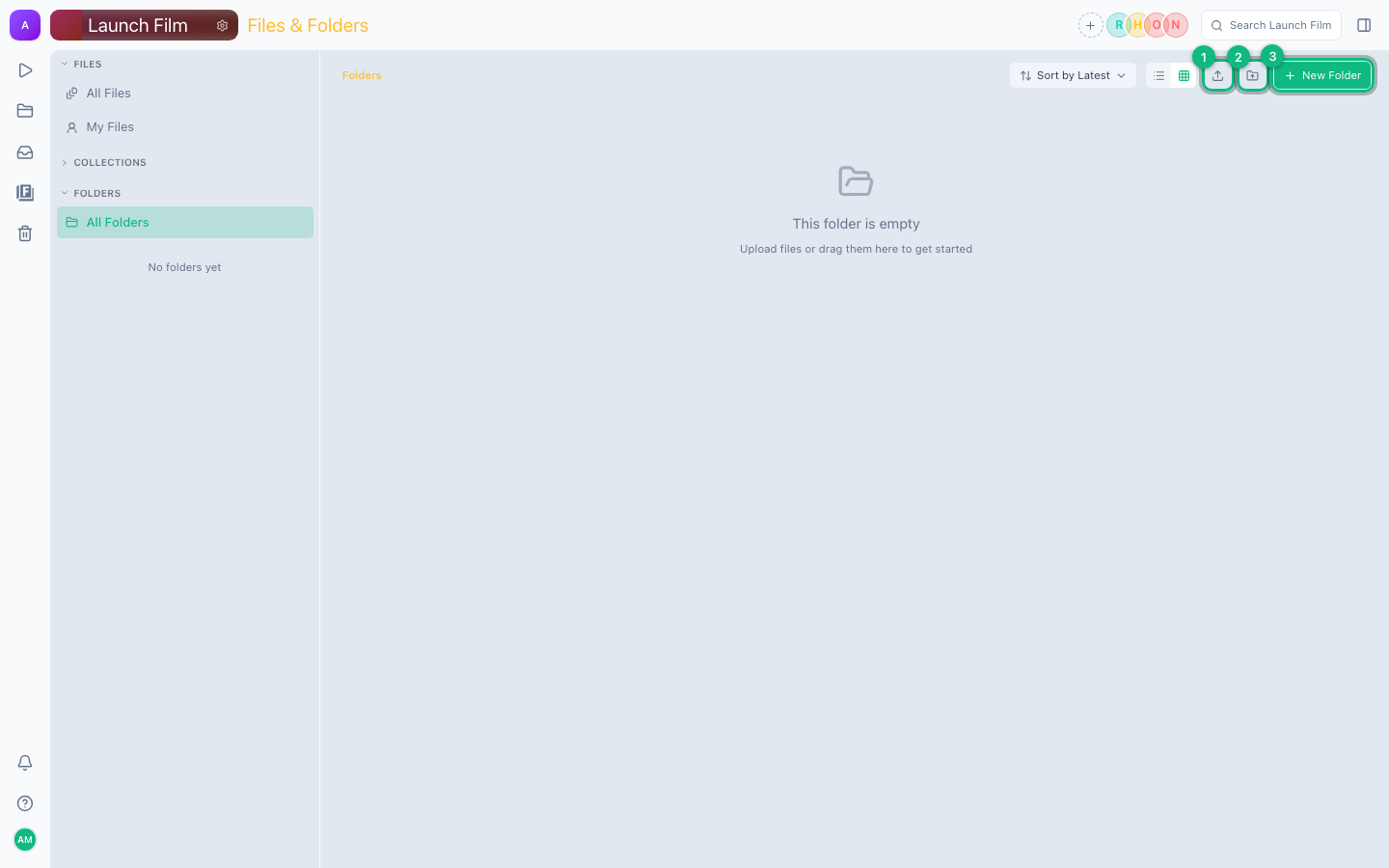
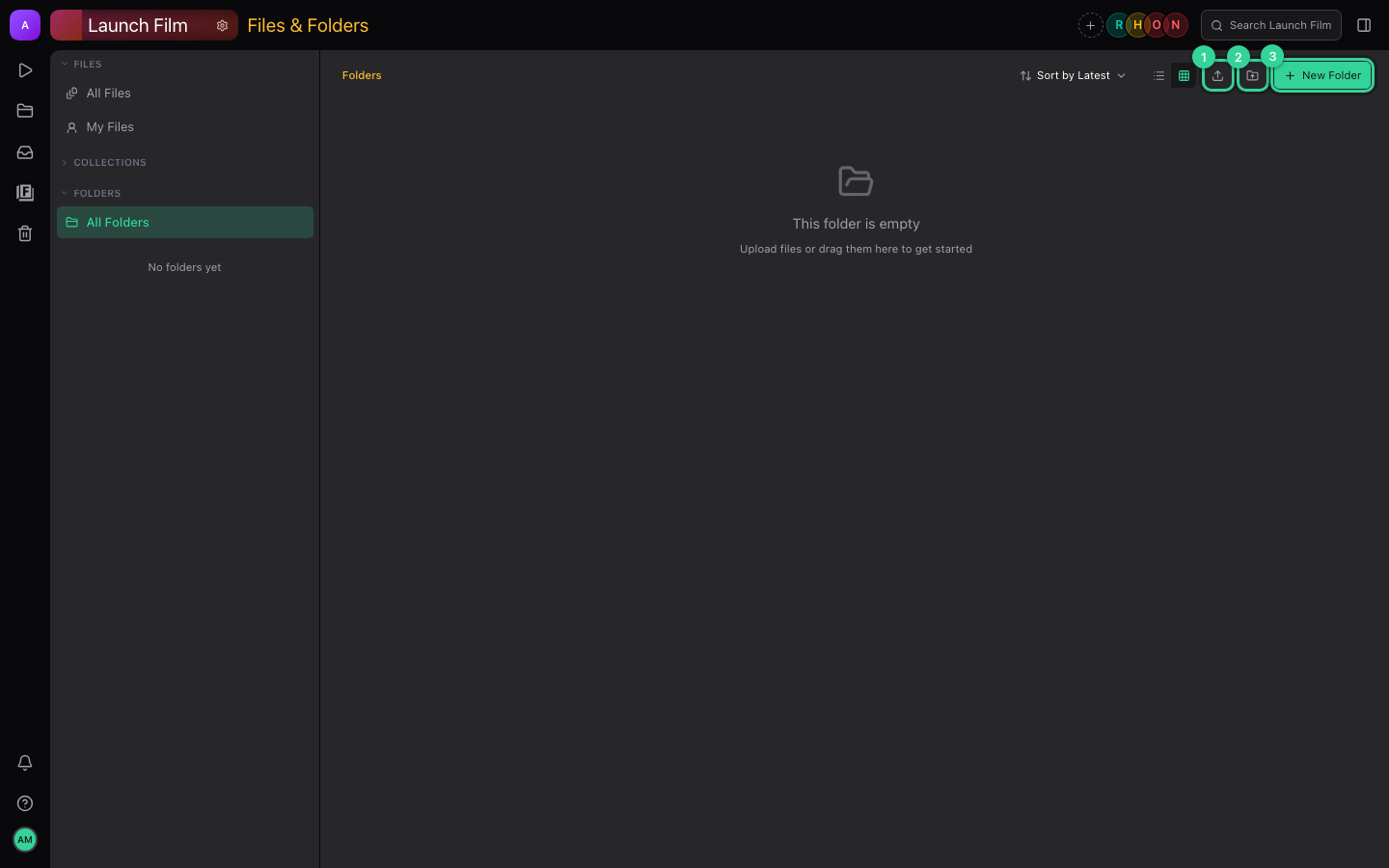
A folder upload recreates its subfolders. revis.io skips files it can't take and names them in a message; the rest upload. You can also drag files from your computer onto the page, or onto a folder to upload into that folder.
Create a folder
- Select New Folder at the top. You can also right-click an empty area, or a folder to create one inside it.
- In Create Folder, enter a Name. If your project has folder types, you can pick a Type, which adds its subfolders for you. You can also pick a Color.
- Select Create.
Each folder name can be used once inside the same folder, including by folders in the Trash. If nothing happens when you select Create, the name is probably taken: try another one.
Rename, move, or color a folder
Right-click a folder, then:
- Rename: type the new name and press Enter.
- Move to...: choose the destination folder, then select Move. You can also drag a folder onto another folder.
- A color: select one of the swatches.
You can't move a folder back to the top level of the project.
Move files into a folder
- Select the files. Hold ⌘ (Ctrl on Windows and Linux) to add files one at a time, or Shift for a range.
- Drag them onto a folder, either in the grid or in the folder list on the left.
revis.io shows Moved with Undo. To put selected files into a new folder instead, right-click them and select New folder from 2 items (the number matches your selection).
Changes your teammates make show up when you reload the page.