

Appearance
Set link sharing and download defaults
The Link Sharing and Downloads pages decide whether people can share reviews with guests, what new share links start with, and what anyone can download. Set them for the whole organization, then tighten them for a project if it needs stricter rules. A project can't loosen what the organization restricts.
Before you start
- Who: Owners and Admins for the organization's pages; Owners, Admins, and the project's Project Admins for a project's pages. Others who can open these pages see them read-only.
- Where: the web app.
Set link sharing rules
- Select your organization's icon at the top of the sidebar.
- Select the gear next to your organization's name (Organization settings).
- Select Link Sharing.
- Select or clear the options (see the table). The other options are unavailable while External Link Sharing is off.
- Select Save Changes.
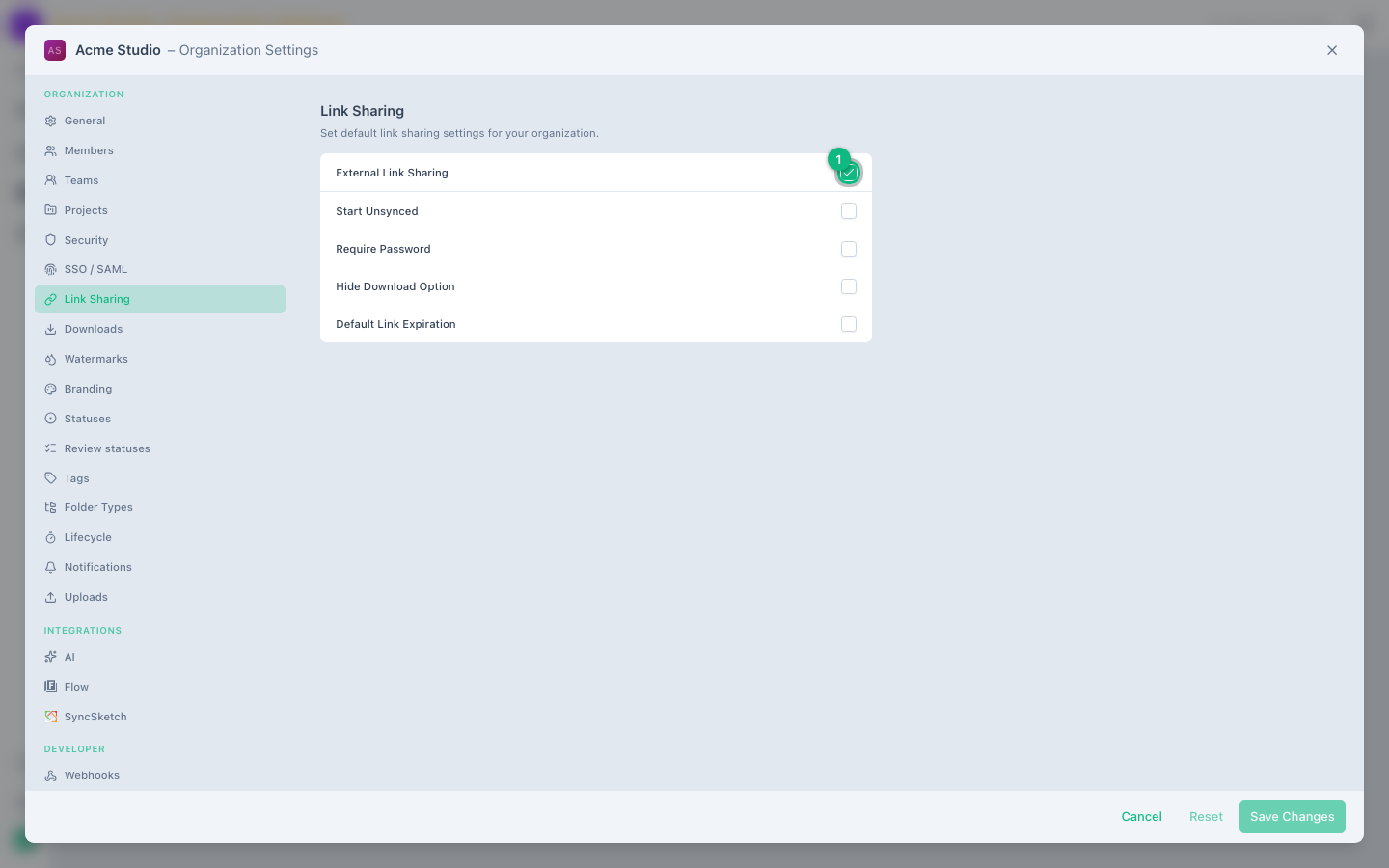
| Option | What it does |
|---|---|
| External Link Sharing | On by default. When off, Share disappears from reviews and the player, and existing share links stop working until you turn it back on. |
| Start Unsynced | New links have Start unsynced ticked: guests play the review at their own pace instead of following a live session. |
| Require Password | New links must have a password of at least 5 characters. Existing links without one stop working. Turn each unprotected link off and share the review again to create a password-protected link. |
| Hide Download Option | The Download option disappears from the Share dialog, so new links can't allow downloads. Links that already allow them keep doing so until someone edits them. |
| Default Link Expiration | Off by default. Turn it on and choose 12 hours to 30 days (7 days is preselected); new links expire after that time unless the person sharing changes it. |
Choose which downloads are allowed
- In Organization settings, select Downloads.
- Turn options on or off. Enable All switches all four at once.
- Select Save Changes.
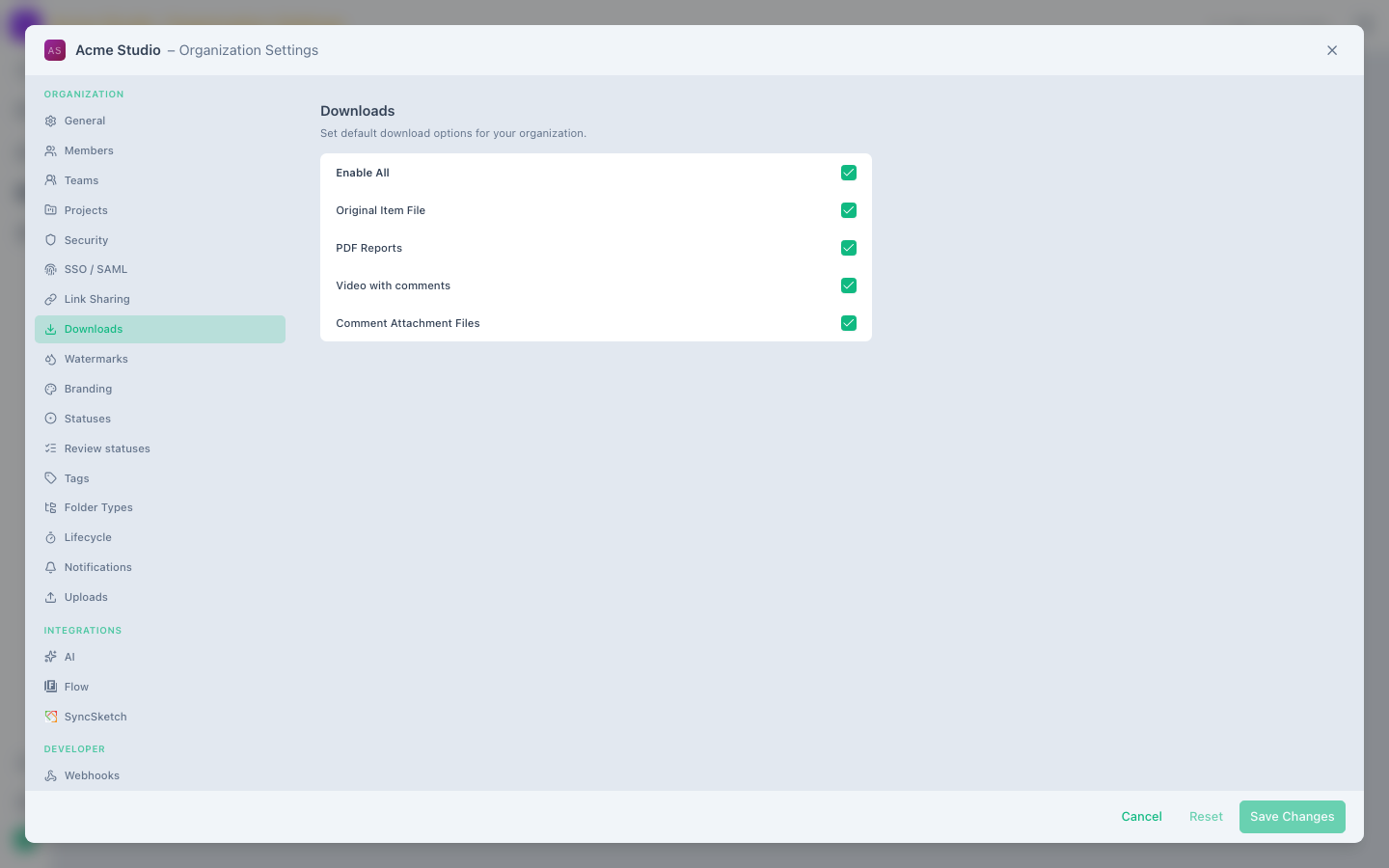
| Option | Turns on or off |
|---|---|
| Original Item File | Download Original: the file as it was uploaded. With it off, the player still plays every item. |
| PDF Reports | Download PDF: a report of an item's comments. Together with Original Item File, also Download with Comments for PDFs. |
| Video with comments | Download with Comments for videos |
| Comment Attachment Files | Download on files attached to comments |
All four are on by default. Roles still apply: Reviewers and Viewers can't download original files even when Original Item File is on. Guests also need a share link that allows downloads.
Change the rules for one project
- Open the project.
- Select the gear next to the project's name at the top of the page (Project settings).
- Select Link Sharing or Downloads.
- Change the options.
- Select Save Changes.
A project can tighten the organization's rules but not loosen them: options the organization restricts are locked and marked Set by your organization. Start Unsynced and Default Link Expiration are defaults a project can set either way. An option you haven't changed shows the organization's value and keeps following it. Once you change an option on a project, the project keeps its own value when the organization's default changes later; the organization's restrictions still apply. You can't switch the option back to following the organization.